
Open the form
Go to online.apps.austrac.gov.au and log in. If you do not have an account yet, create one first.
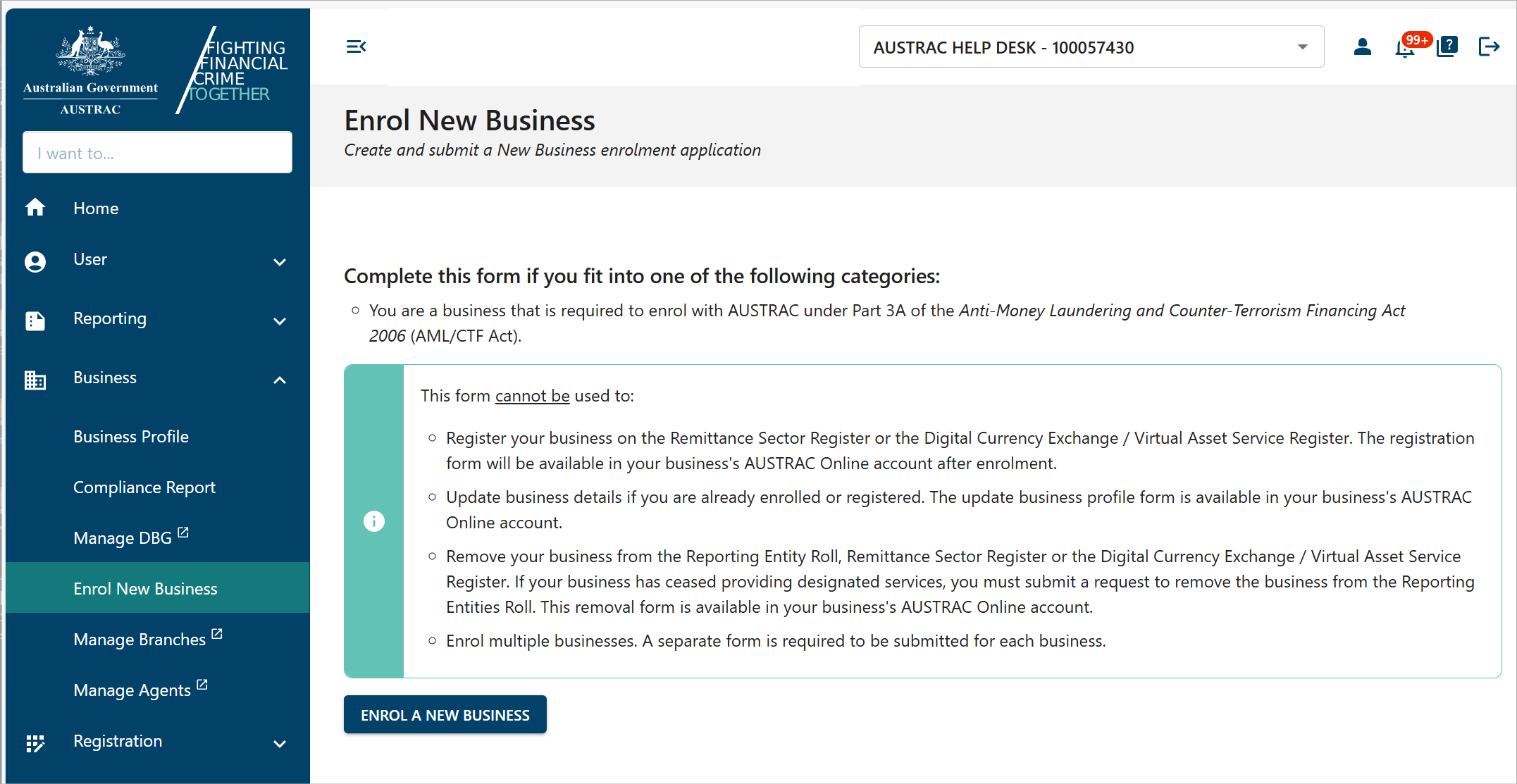
Select Business in the menu on the left, then Enrol New Business.
Fill it in
Select ENROL A NEW BUSINESS. The form opens in a new tab.
 Click to enlarge
Read the introduction and declaration section, then select Next.
Work through the remaining sections. If a question is incomplete or in the wrong format, an error message appears under the question or at the top of the page, and you cannot move on until it is fixed.

If you need to stop, select save for later. The draft is kept for 14 days and then deleted, so come back within two weeks.
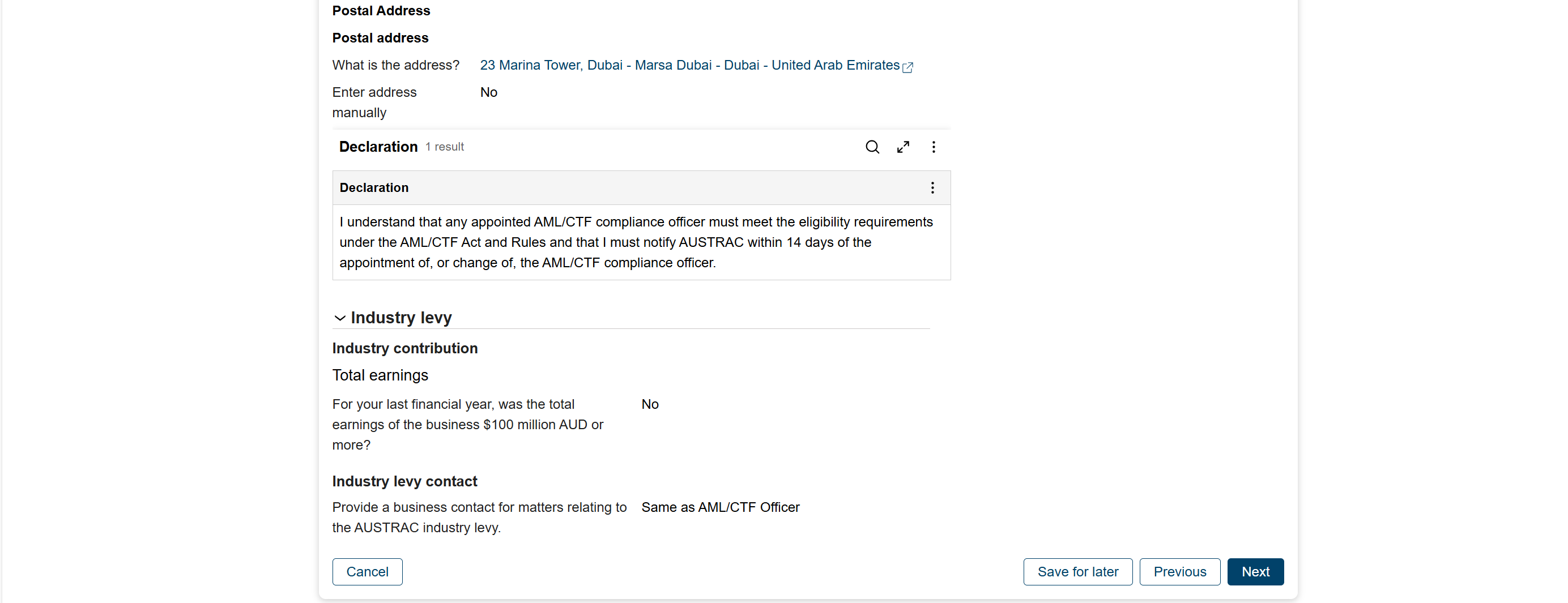
In the summary and review section, read everything you entered. Select Previous to change a section, or Next to go to the declaration.
 Click to enlarge
Send it
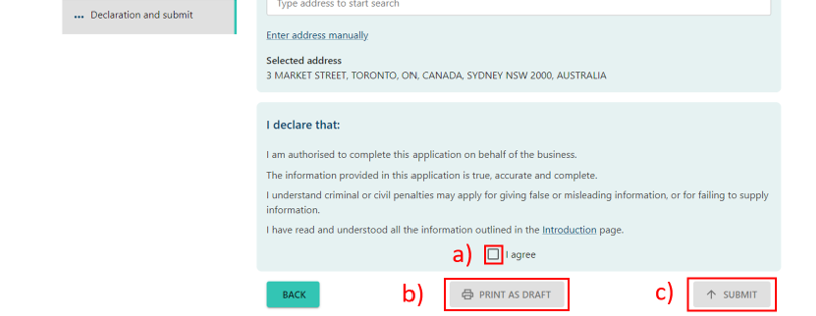
On the declaration page, tick I agree, then select Submit.
 Click to enlarge
What you will see when it worked
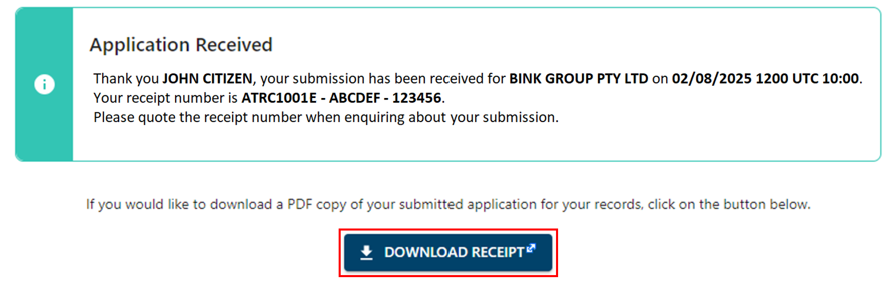
A confirmation page with a submission receipt number. An email follows with the same number, the date and time, and your business's AUSTRAC Account Number (AAN). Quote the AAN whenever you contact AUSTRAC. You can see the submission again under Business, Business Profile, Submissions.
On the confirmation page, select Download receipt to keep a copy.
Keep the details current
You must tell AUSTRAC within 14 days when any of these change: the services you provide, the structure of your business (including a merger), your contact details, the names and contact details of directors, officeholders or other key people, or your annual earnings.
Log in, and if you are a user for more than one business, select the one to update.
There are three ways to open the Update Enrolment details form: the link on the right of the home page, Business Profile in the Business menu, or My Registrations in the Registration menu.
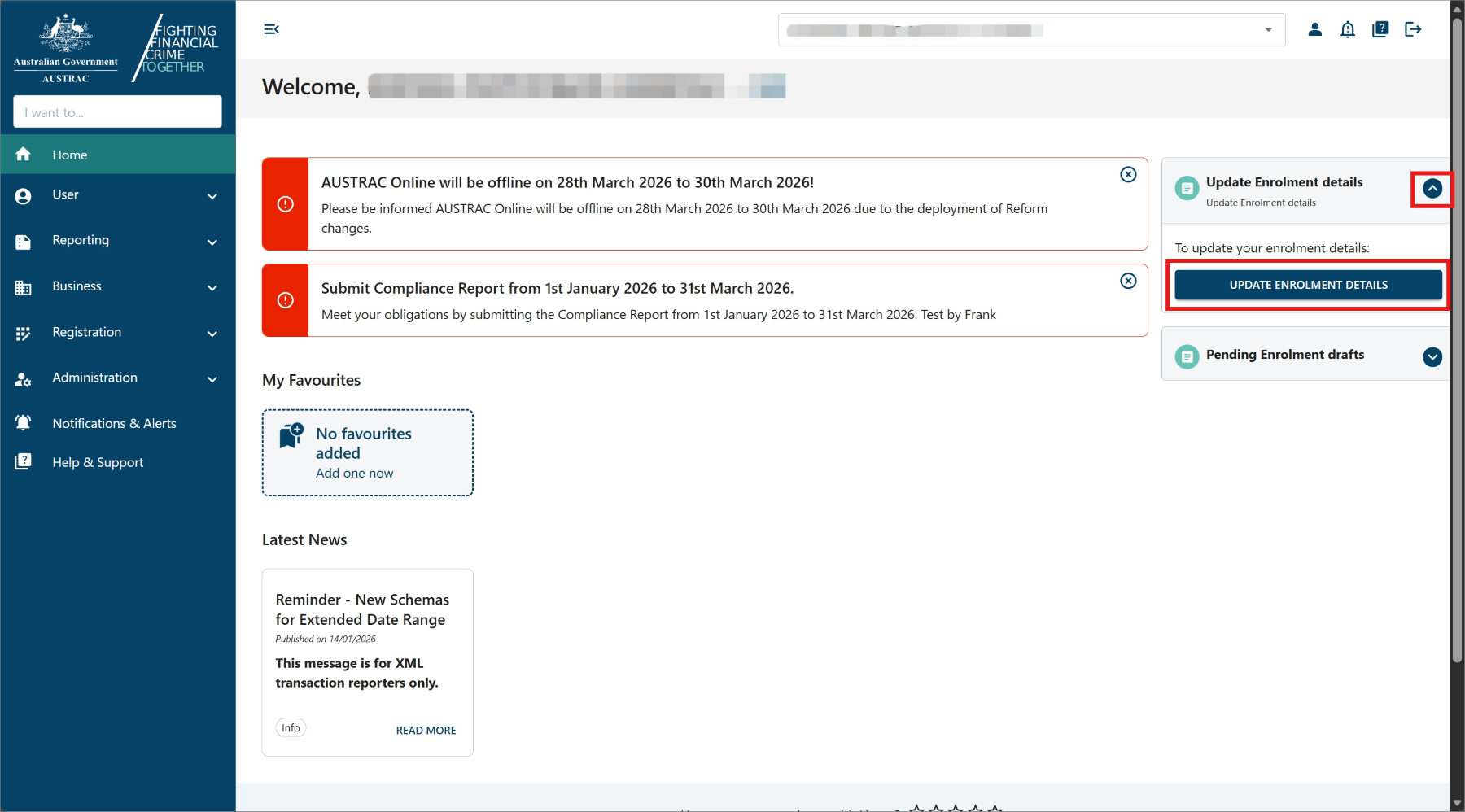
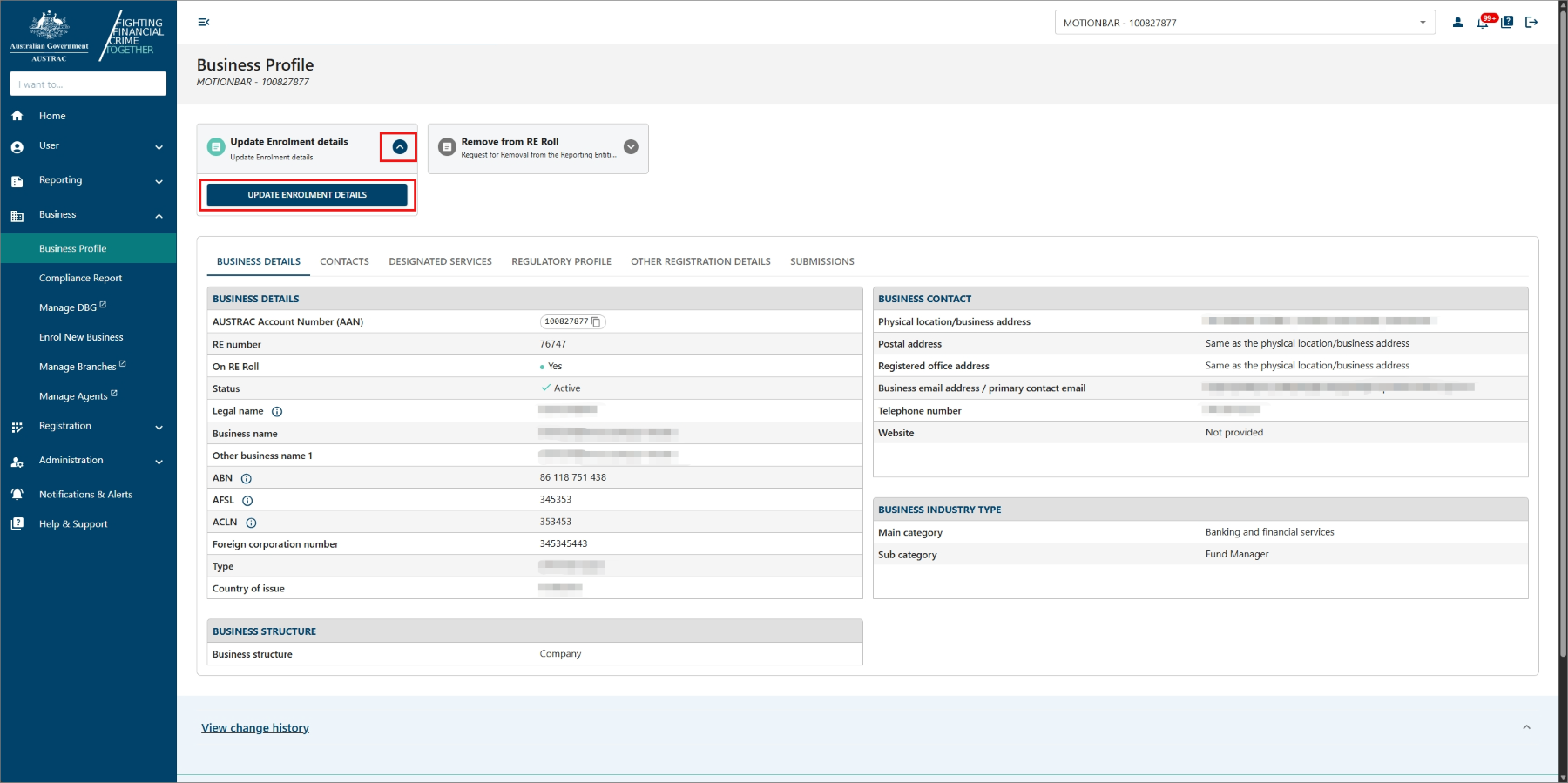
Change only the sections that need it, review them in summary and review, and select Save and continue. On the declaration page, tick I agree and select Submit. To change it again later, submit another update form.
You will see a Submission Confirmation page with a submission receipt number, and an email with the same receipt number confirming AUSTRAC received your application form.
If something goes wrong
- You started the form more than 14 days ago and it is gone. Drafts expire. Start again; it is faster the second time.
- You submitted the wrong answer. A submitted form cannot be edited. Submit an update form with the correct details.
- You run a second business with its own ABN. It needs its own enrolment. From the Business menu select Enrol new business, then Enrol a new business.
- You are a remitter or virtual asset provider. You also have to register, after enrolling. AUSTRAC emails you a PDF registration form, and the form is also in your AUSTRAC Online account after enrolment.
Record it in AML Mate
When the enrolment confirmation email arrives, mark Step 2: Enrol with AUSTRAC Online complete in AML Mate's Registration tracker: select Complete next to it, and the date is recorded automatically. Add the AUSTRAC Account Number (AAN) and the date in the Notes box under Registration Details. It is the first thing an examiner asks for. Open the Registration tracker.
Sources
- AUSTRAC, QRG: How to enrol a businessAUSTRAC last updated
- AUSTRAC, user guide: Enrol a new business with usAUSTRAC last updated
- AUSTRAC, information you will need to fill out the enrolment formAUSTRAC last updated
- AUSTRAC, preview the questions in the enrolment formAUSTRAC last updated
- AUSTRAC, QRG: How to update your detailsAUSTRAC last updated
Screenshots © AUSTRAC for the Commonwealth of Australia 2026, used under CC BY 4.0. AUSTRAC does not endorse AML Mate.