
Sign up
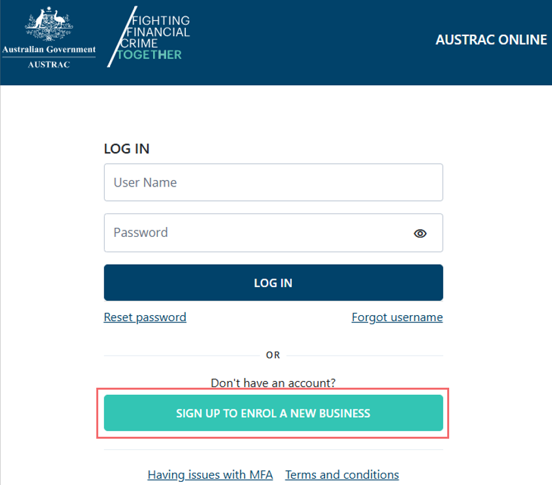
Go to online.apps.austrac.gov.au and select Sign up to enrol a new business.
 Click to enlarge
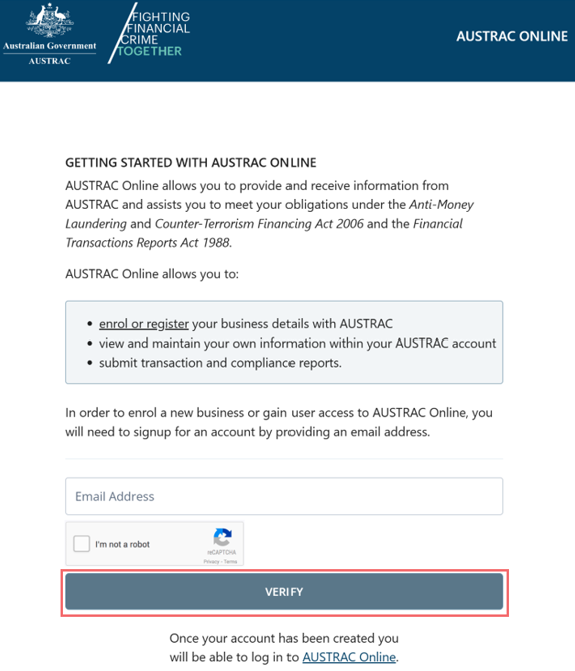
Type your email address, tick the reCAPTCHA box, and select Verify.
 Click to enlarge
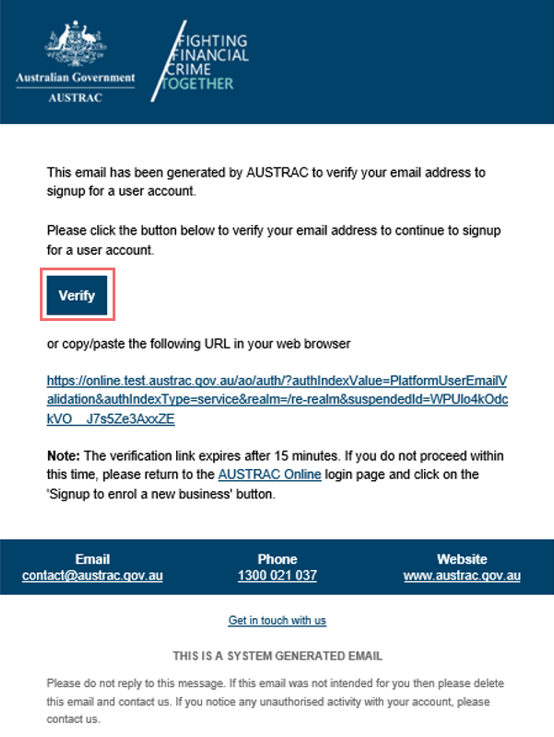
Open your email. AUSTRAC has sent you a message. Select Verify inside it.
 Click to enlarge
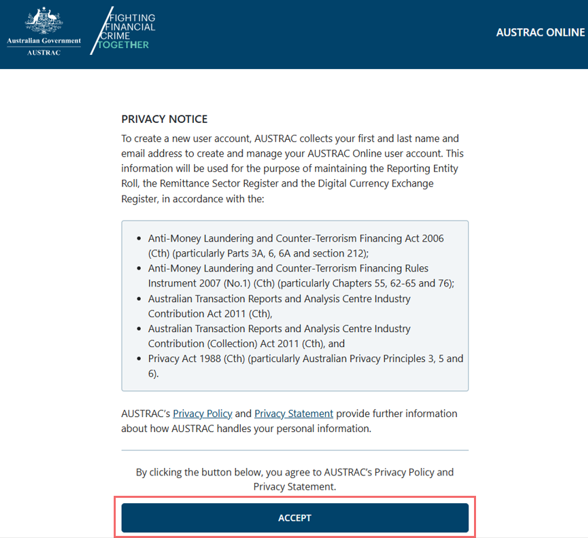
Read the privacy notice and select Accept.
 Click to enlarge
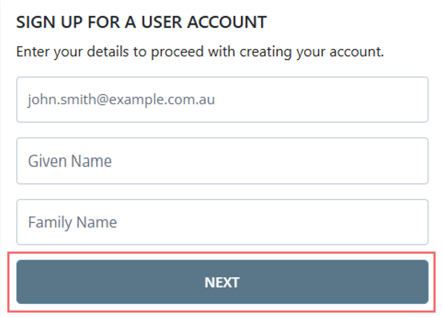
Enter your name and details, then select Next.
 Click to enlarge
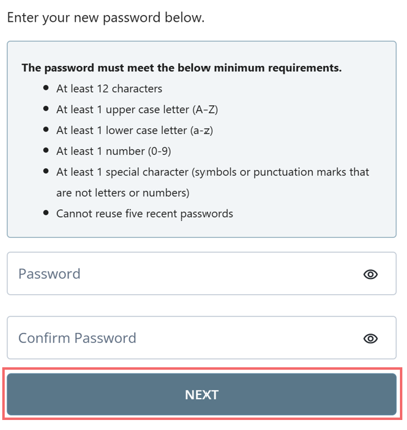
Choose a password that meets every rule listed on the page, then select Next.
 Click to enlarge
Set up the login code
AUSTRAC calls this multi-factor authentication. Every time you log in you will enter your password and then a code. You choose where the code comes from.
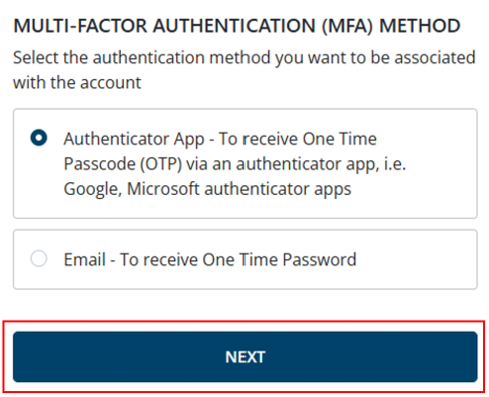
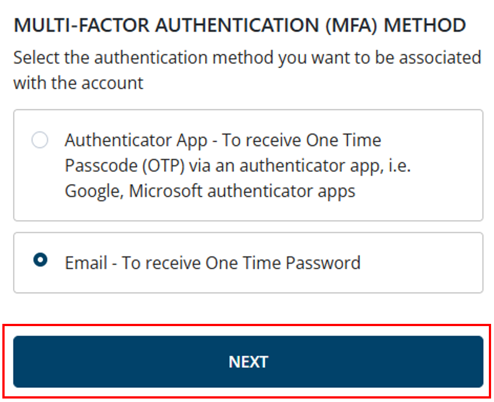
Choose an authenticator app or email, then select Next (the picture shows the app option chosen). Email is simpler. The app works when your email is slow.
 Click to enlarge
If you chose the app
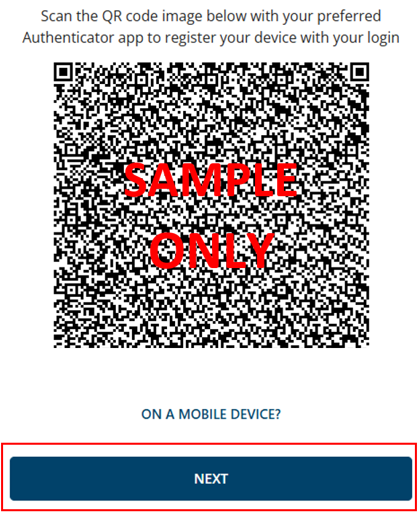
Install Google Authenticator, Microsoft Authenticator or another reputable authenticator app on your phone. Scan the square QR code on the screen with the app, then select Next.
 Click to enlarge
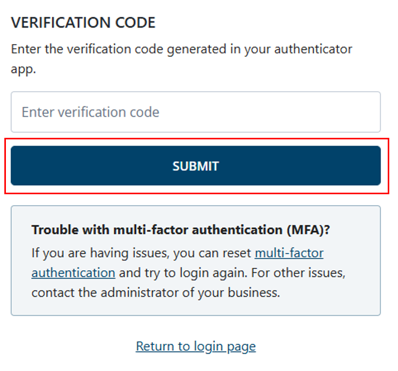
Type the code the app shows and select Submit.
 Click to enlarge
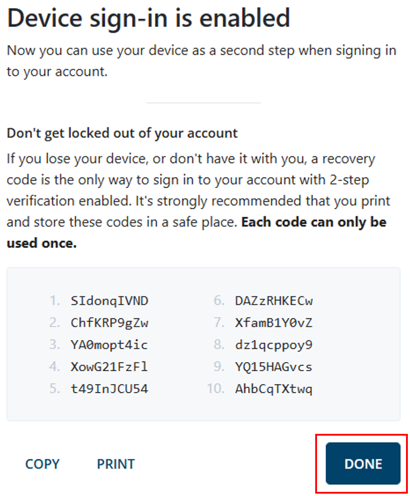
AUSTRAC shows you ten recovery codes. Print them or write them down and keep them with your business papers: each one works once, and they are how you get in if you lose the phone. Then select Done.
 Click to enlarge
If you chose email
You chose email and selected Next at step 7. AUSTRAC now emails you a code.
 Click to enlarge
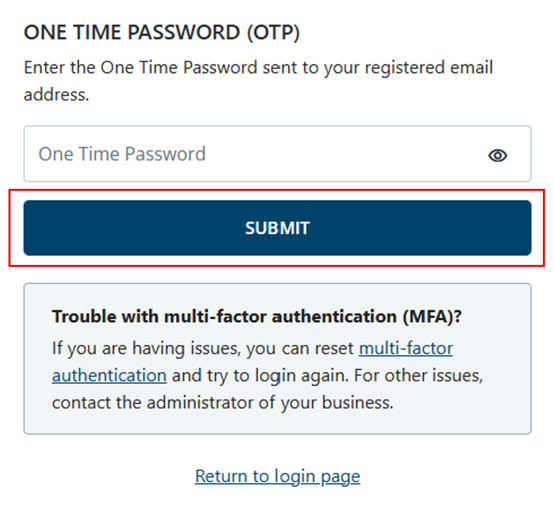
Open the code AUSTRAC emails you, type it in, and select Submit.
 Click to enlarge
Log in again
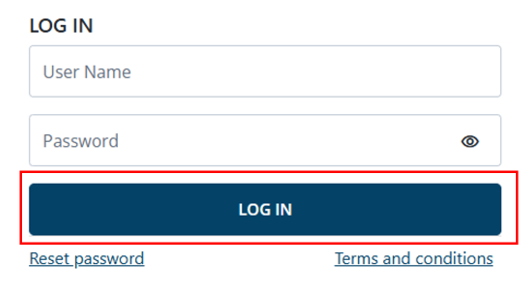
The screen tells you to log in again. Enter your username and password and select Log in, type the code from your app or email, and select Submit. You are in.
 Click to enlarge
What you will see when it worked
After you log in with the code, AUSTRAC Online opens on its home page with a Business menu on the left. You will also have an email from AUSTRAC confirming the account was created. It is your cue to enrol the business. The next task is enrol your business.
If something goes wrong
- The verification email never arrives. Check that the email address you typed in step 2 is correct, and if not, go back and do step 2 again. Otherwise, check the spam folder, ask whoever looks after your email whether it was filtered, and try a different browser (AUSTRAC suggests switching from Edge to Chrome).
- Your password reset keeps failing. Your username may not be your email address. If the reset email still does not come, contact AUSTRAC with your username, email address, phone number and a short description of the problem.
- You lost the phone with the authenticator app. On the screen that asks for the code, select Use recovery code and enter one of your codes. Or select the reset MFA link on the one-time password (OTP) screen, enter your username and password, select Submit, then select Proceed in the email AUSTRAC sends, and set the code up again.
- You never wrote the recovery codes down. Use the reset MFA link on the one-time password (OTP) screen. It works without them.
Record it in AML Mate
AML Mate's Registration tracker is where the enrolment itself gets marked off in the next task. For now, put the name of the person who holds the AUSTRAC Online login, and the email it was created with, in the Notes box under Registration Details, so the practice knows who to ask when the login code is needed. Open the Registration tracker.
Sources
- AUSTRAC, QRG: AUSTRAC Online new user sign-upAUSTRAC last updated
- AUSTRAC, QRG: Registering for multi-factor authenticationAUSTRAC last updated
- AUSTRAC, QRG: How to enrol a businessAUSTRAC last updated
Screenshots © AUSTRAC for the Commonwealth of Australia 2026, used under CC BY 4.0. AUSTRAC does not endorse AML Mate.