
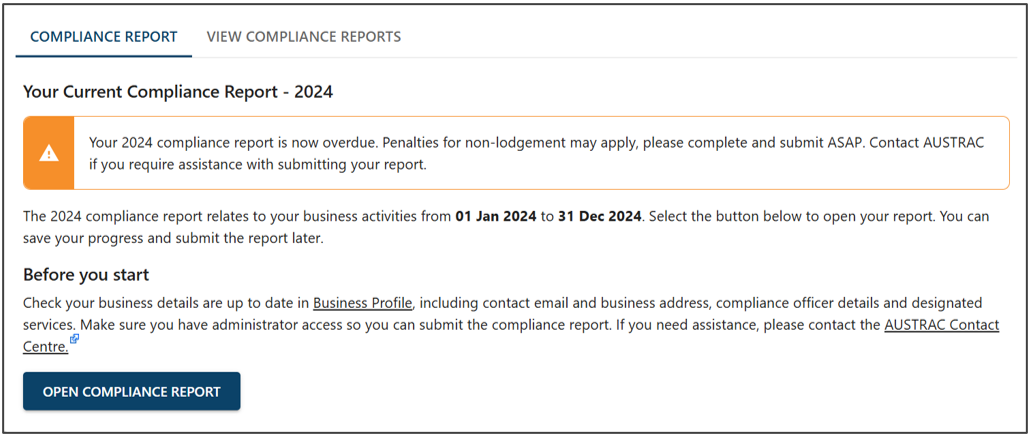
Open the report
Go to online.apps.austrac.gov.au and log in.
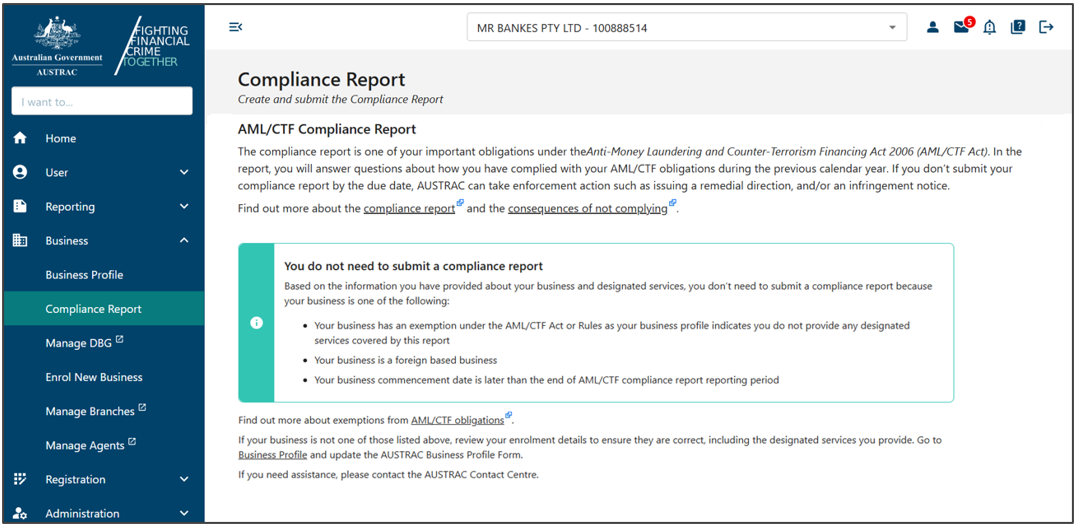
Expand the Business menu and select Compliance Report (AUSTRAC's guide calls it Compliance Reports).
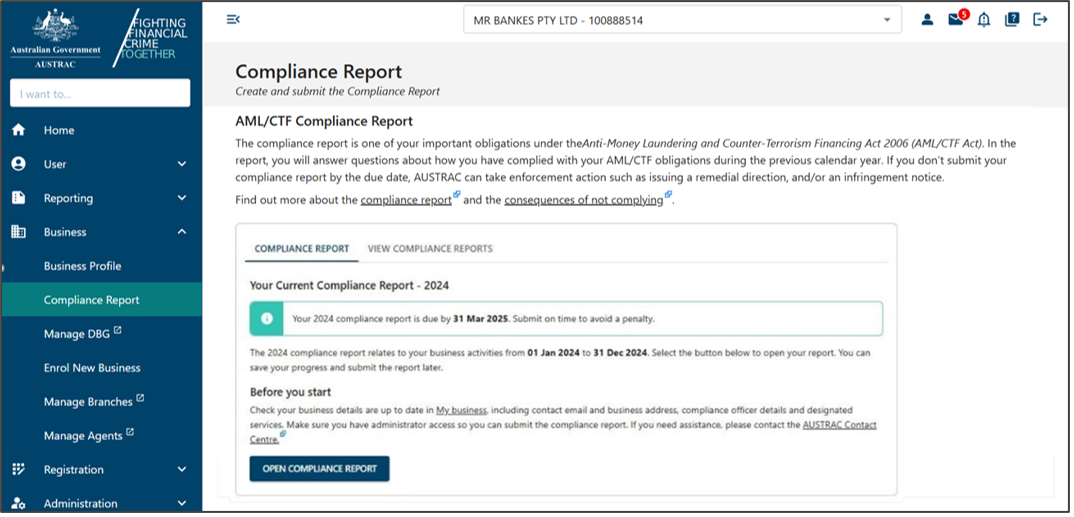 Click to enlarge
Select Open Compliance Report. It opens in a new window.
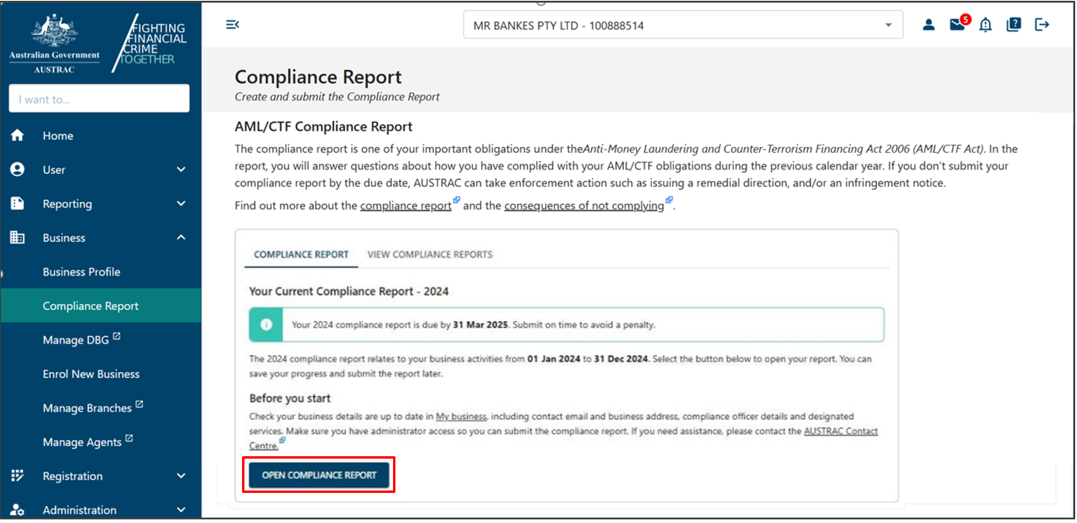 Click to enlarge
AUSTRAC's screenshot shows an older calendar-year report; your report will show the financial year.
Fill it in
Select Start on the introduction page.
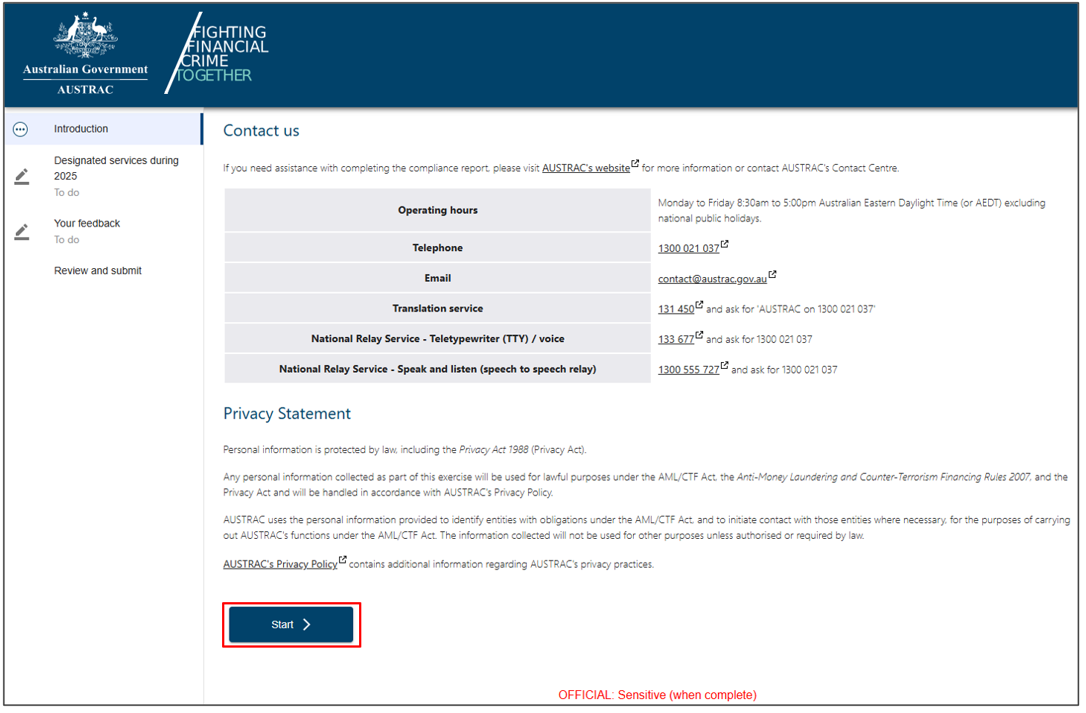 Click to enlarge
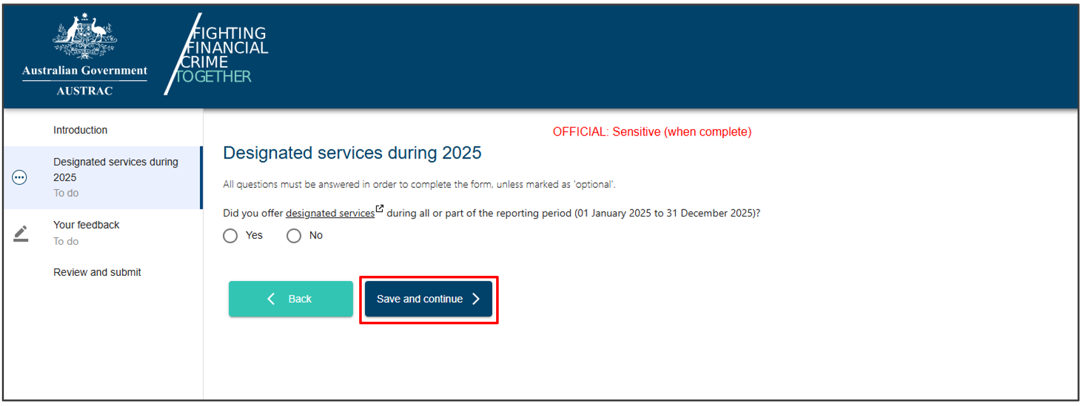
Answer the first question, whether you provided designated services (the services AUSTRAC regulates) in the period, and select Save and continue. If you answer no, the report asks nothing more; go to the Review and submit page and submit it. If you answer yes, the rest of the sections appear.
 Click to enlarge
How the form behaves
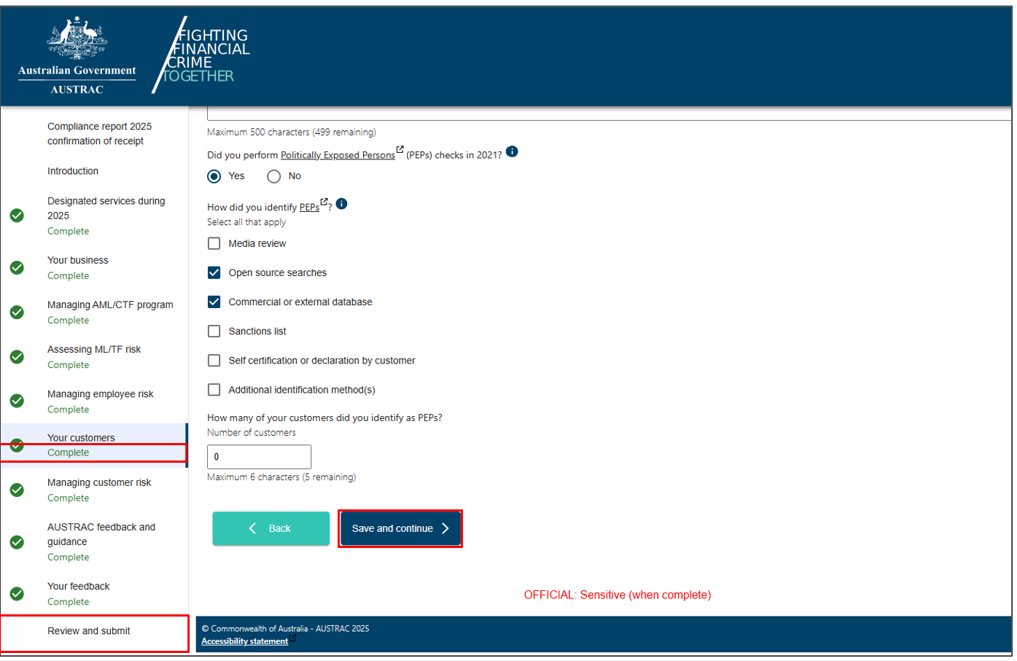
Work through each section, answer every question that applies, and select Save and continue at the bottom of each page. Select Back to return to the previous page.
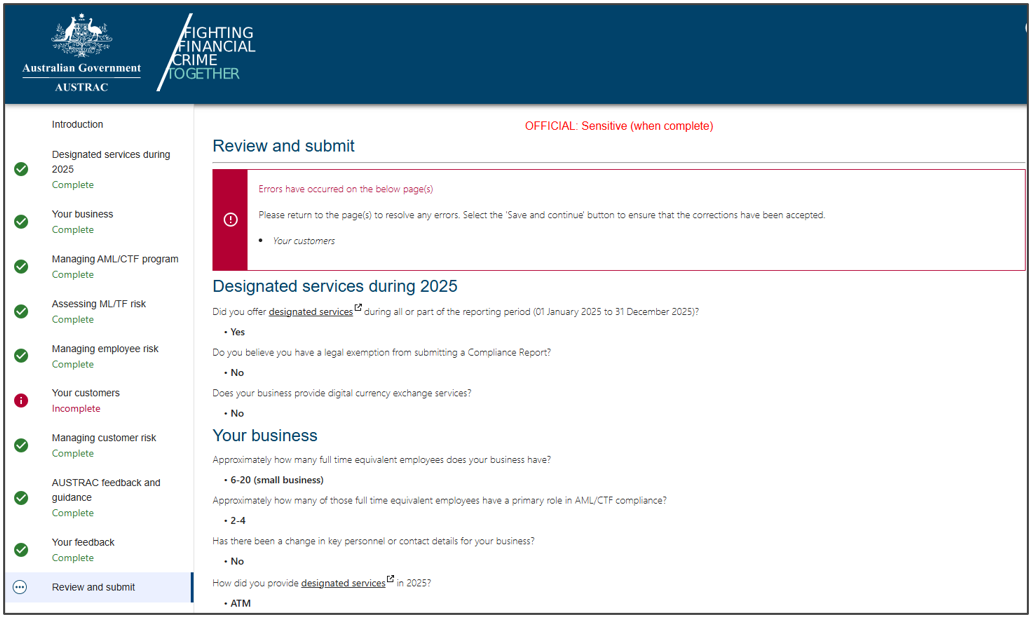
The panel on the left lists every section. A green tick and Complete mean a section is finished; To do means it still needs work.
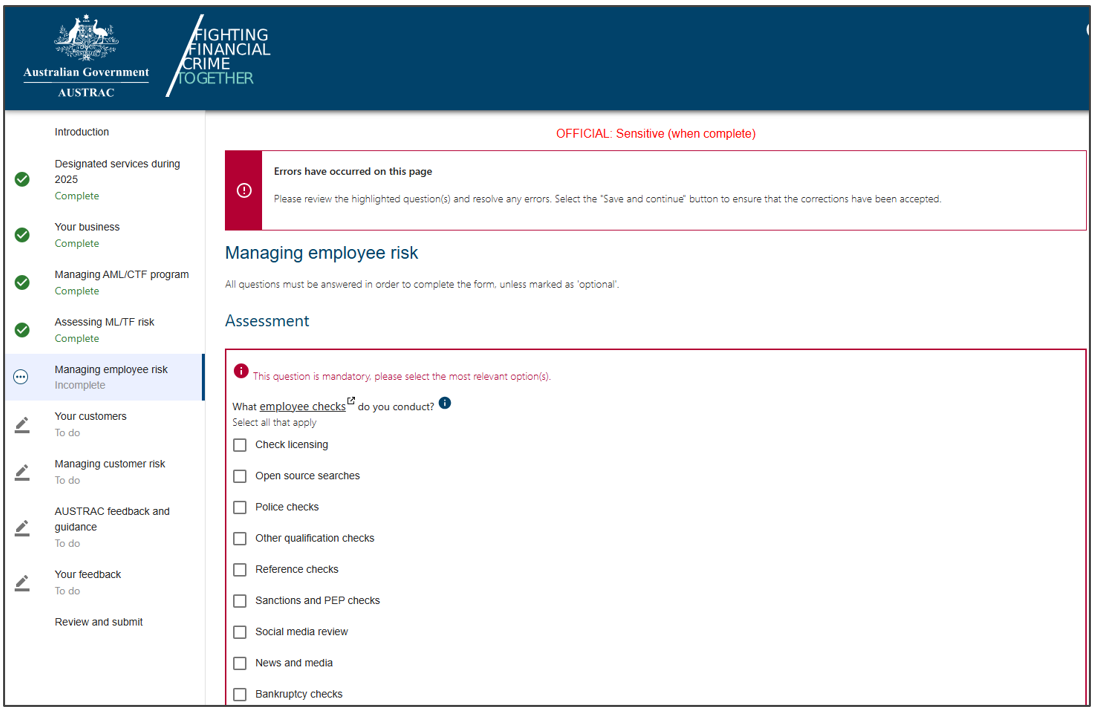
If you miss a question, it is highlighted when you select Save and continue, and you must answer it before the section will show as complete.
There is no separate save button. The only way to stop partway through is to close the browser. Your answers are kept at the last Save and continue, but when you come back the panel shows every section as To do again, even the ones you already finished, so check your answers rather than trust the panel. To continue an unfinished report, select Open Compliance Report again; what you entered is still there.
Send it
Fill in or skip the optional feedback page and select Save and continue.
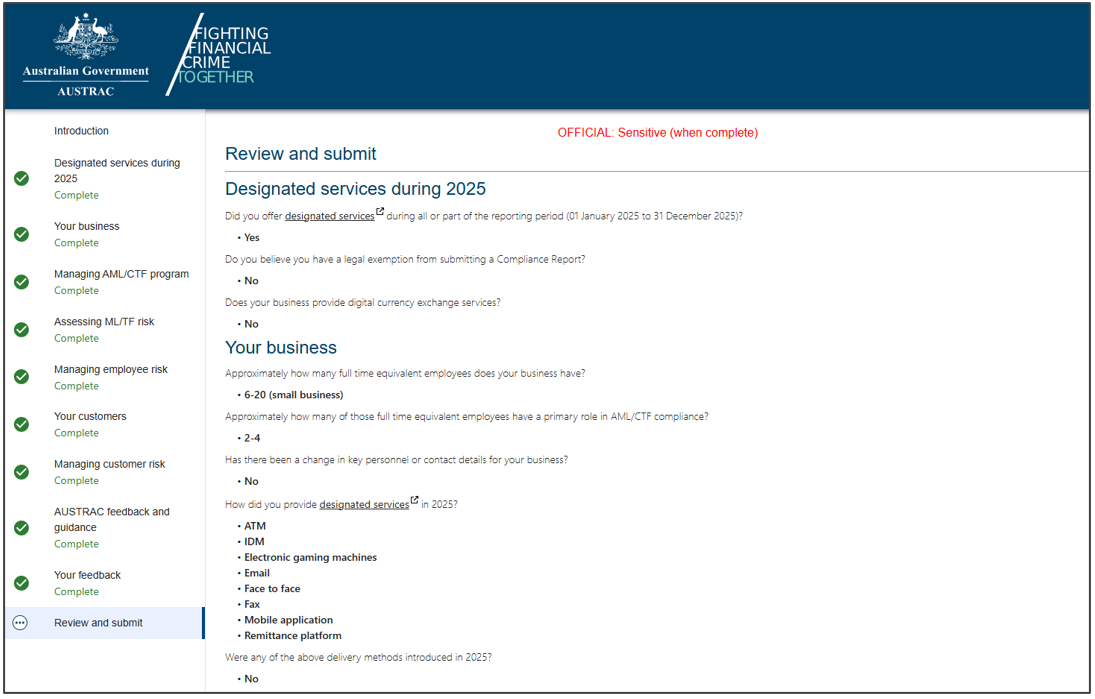
On the Review and submit page, scroll to the bottom and read your answers once more. Press Ctrl+P and select Print to keep a copy.
 Click to enlarge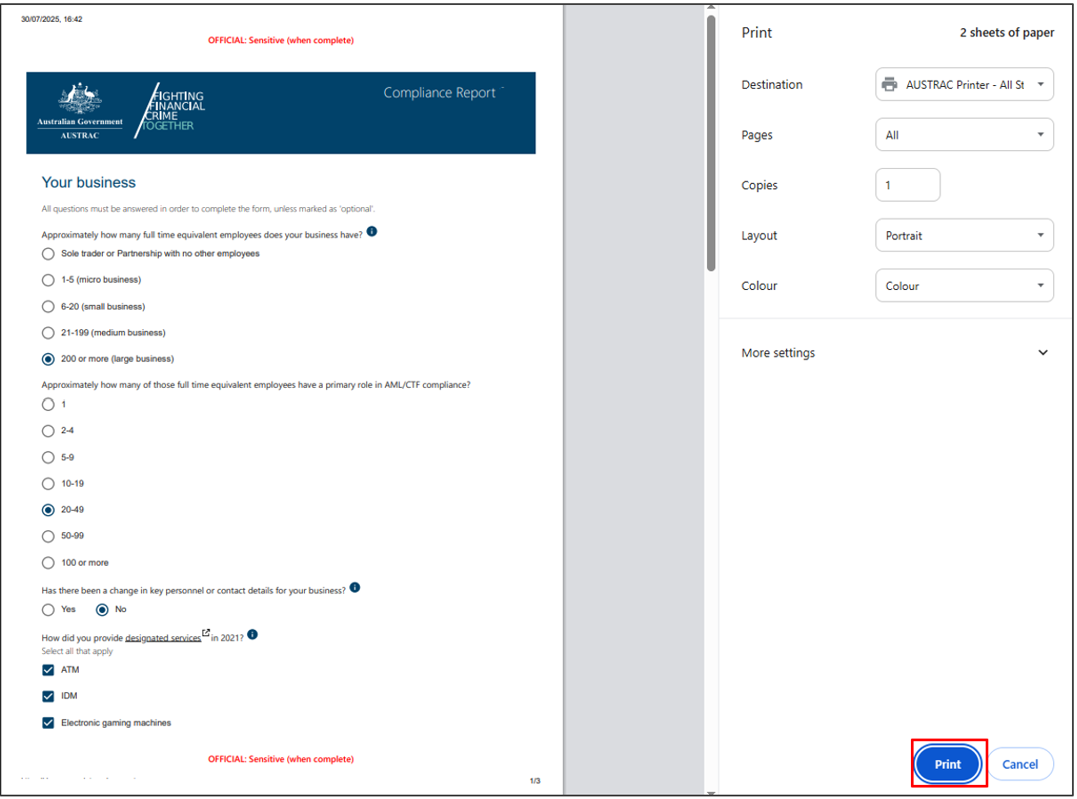
Read the declaration, tick the box, and select Submit.
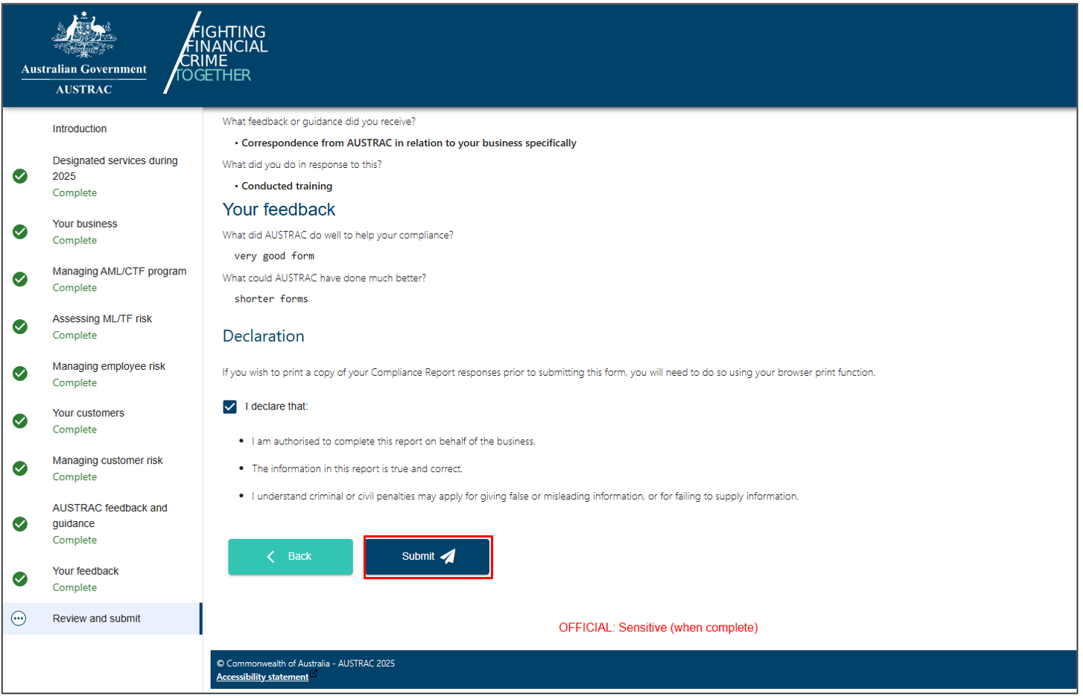 Click to enlarge
What you will see when it worked
A Compliance report submission receipt page. Print it or save it as a PDF and file it with the printout of your answers. That pair is your proof for the year.
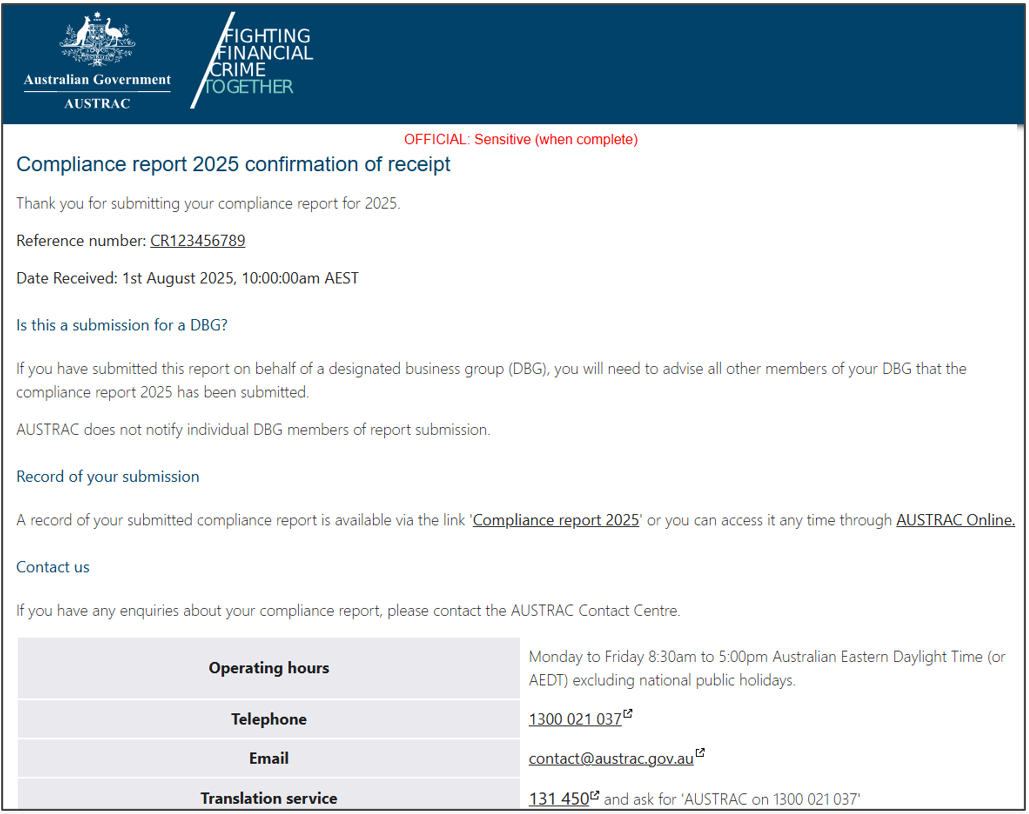
If something goes wrong
-
Submit will not work. A section is still incomplete. The left panel names it; select that section, answer the highlighted question, select Save and continue, then select Review and submit to go back and submit.
-
You cannot see Open Compliance Report at all. Either it is not yet 1 July, AUSTRAC's records say you are not obligated to report this year, or your login is not an administrator on the account, which the account's administrator can change under Administration, Manage Users. If you believe you are obligated, contact AUSTRAC.
-
You submitted with a wrong answer. Ring AUSTRAC on 1300 021 037 or email contact@austrac.gov.au. You cannot change it yourself.
-
You are part of a designated business group. One member, agreed between you, selects Open DBG Compliance Report on behalf of all active members. A second group submission overrides the first draft, so agree who does it before anyone starts.
-
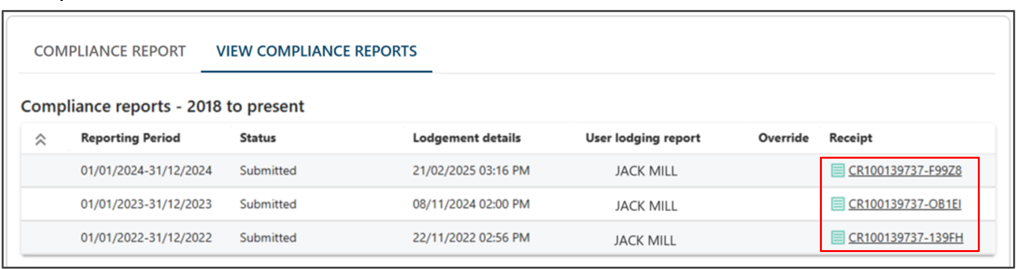
You want to see a previous report. Select View Compliance Reports on the Compliance Reports page, then select the receipt link for the report you want, to view or print it as a PDF.
Record it in AML Mate
AML Mate's annual report section pulls together the numbers the compliance report asks about, clients, screening, SMRs and TTRs filed, staff training and alerts, so July is a reading exercise rather than a search. Pick the year and select Generate Report, then Finalize it once the numbers are right. A finalized report shows a Copy to AUSTRAC Online panel: use Copy All, or copy each field in turn, to paste into the AUSTRAC form, and select Download PDF to keep a copy for your records. Open annual reports.
Sources
- AUSTRAC, user guide: Compliance reportsAUSTRAC last updated
- AUSTRAC, annual compliance reportsAUSTRAC last updated
Screenshots © AUSTRAC for the Commonwealth of Australia 2026, used under CC BY 4.0. AUSTRAC does not endorse AML Mate.